How to Run a Shopify Catalogue Health Check
Pick one collection and review 10 products. Check which ones shoppers can find, whether the listings answer their questions, and whether the collection rules still match what you want to sell.
Start with a mix of recent uploads, older listings and products with variants. If the collection has fewer than 10 products, review them all. Keep a short list of what you find before making changes. A repeated issue is a reason to review more products from the same collection or supplier.
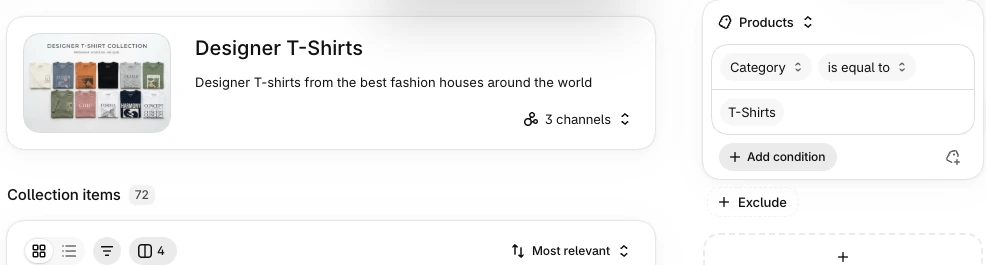
We’ll use Designer T-Shirts from our Demo2 store as a worked example. Shopify admin shows 72 items in this collection, including drafts. That count is a starting point for the review.
1. Check what belongs in the collection
Open the collection in Shopify admin and read its conditions. Ask whether they match the name shoppers see. Demo2’s Designer T-Shirts collection uses one condition, Category is equal to T-Shirts. If every T-shirt in the store belongs in that collection, the category rule does the job. If you intend to show only selected T-shirts, consider a second condition using a dedicated tag. Check whether products must match all conditions or any of them, then look for an item you expect to be included and one you expect to be excluded. Shopify’s collection conditions guide
Campaign collections give you a different rule to check. Demo2’s The Big Sale – 25% Off uses the Sale25 tag to group products. Check both which products the rule includes and whether the advertised discount appears where shoppers expect to see it.
2. Check product status and publishing
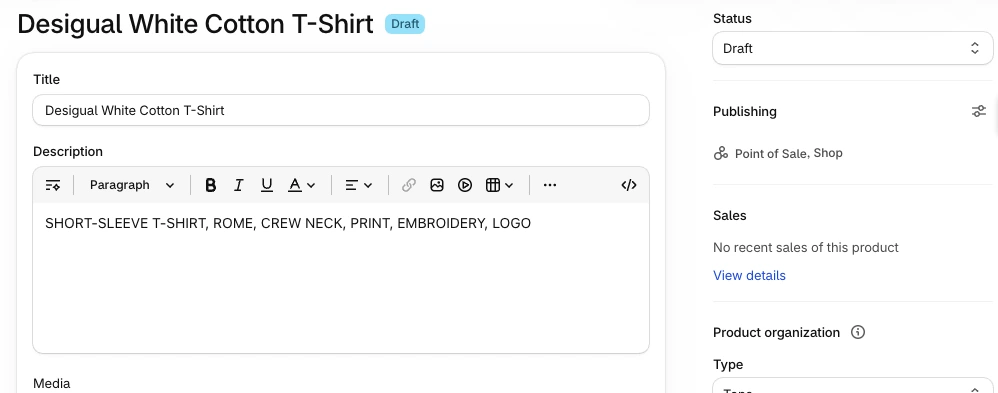
When a product appears in the admin but seems to be missing from the storefront, open the product and check Status and Publishing. The Desigual White Cotton T-Shirt in Demo2 is a Draft. Its Publishing section lists Point of Sale and Shop. The Online Store channel is absent. If a product is ready to go live, check that its status is Active and that it’s available on the intended channel. Then look for it in the collection on your storefront. An intentionally staged draft can stay in draft. Shopify’s product status and availability guide
3. Compare similar product listings
Read the title and description as if you were choosing between two similar items. The Desigual title already tells you the brand, colour, material and garment. Its description is a short, all-caps list. The short sleeves and crew neckline are useful details you can turn into readable copy. Verify ambiguous supplier wording such as “ROME” before carrying it over.
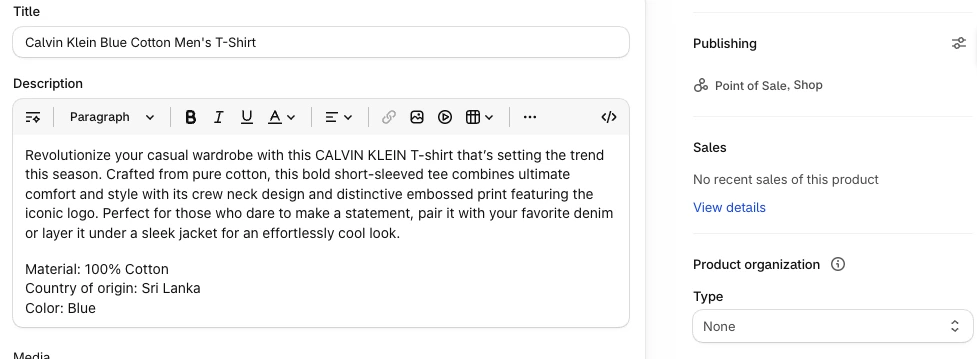
The Calvin Klein Blue Cotton Men’s T-Shirt makes its material, colour and country of origin easy to scan. Its Product type is blank, while the comparable Desigual listing uses Tops. If your store uses product type for collection rules or storefront filters, check that similar items follow your chosen convention. In Demo2, Tops could suit both listings if that’s the intended grouping. Designer T-Shirts uses the separate Shopify Category field for its rule. Shopify’s storefront filters guide
4. Review product and collection images
For clothing, start with two useful views. Add a close-up when it reveals a detail that matters, such as stitching or texture. If a product comes in multiple colours, select each colour you’re checking and see whether the storefront shows the matching photo.
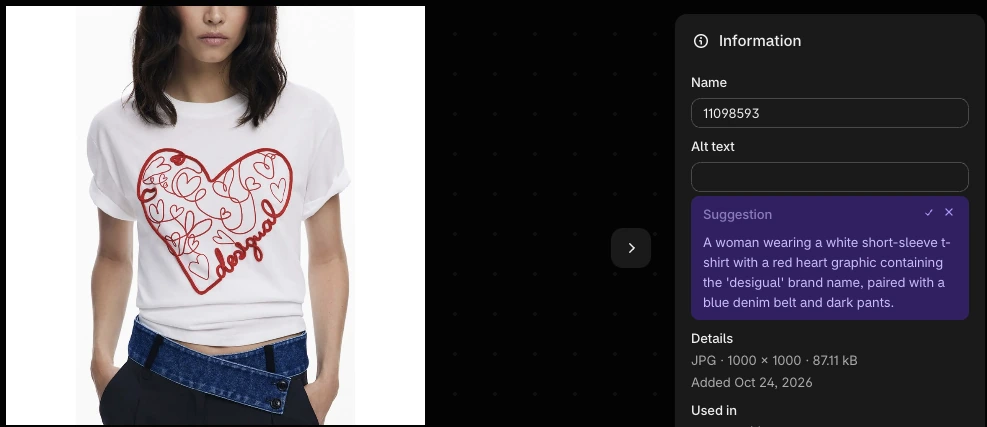
Check the alt text on informative images. The main Desigual photo had an empty alt text field and a suggested description that mentioned the model’s belt and trousers. The red heart graphic is the detail that helps identify the T-shirt. A shorter description works here.
White Desigual T-shirt with a red heart graphic and logo, shown from the front.
Check the collection image too. In Demo2, we opened the Designer T-Shirts collection image in Shopify admin and added text describing what the banner shows. If an image adds information, describe what it contributes in context. A purely decorative image can use an empty alt attribute. W3C’s alt text decision tree
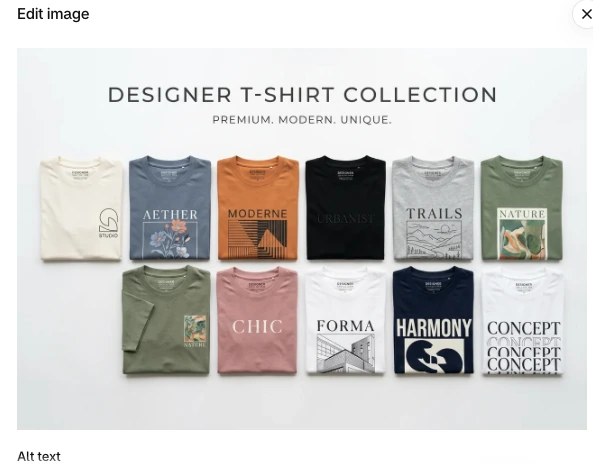
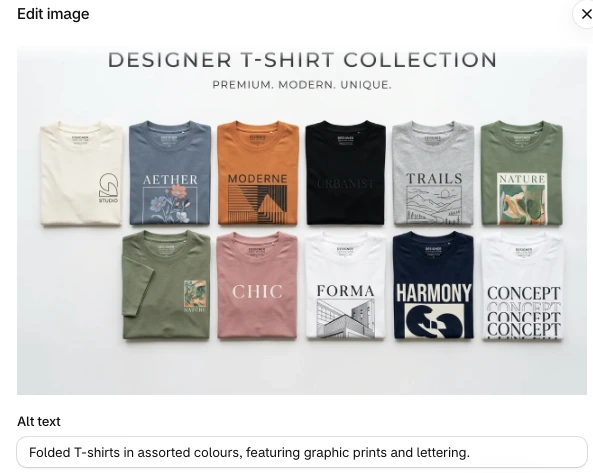
If you find missing alt text across a large catalogue, a bulk tool such as SEOMagicPRO’s AI Image Optimizer (AIO) can draft alt text for product images. Review the suggestions before applying them, especially where photos show different colours, angles or details.
5. Open the page as a shopper
On a product that’s live, open the storefront on desktop and mobile. Check that you can understand the size or colour options, see the price and tell whether the selected variant is available. Use a preview to check the layout of a draft.
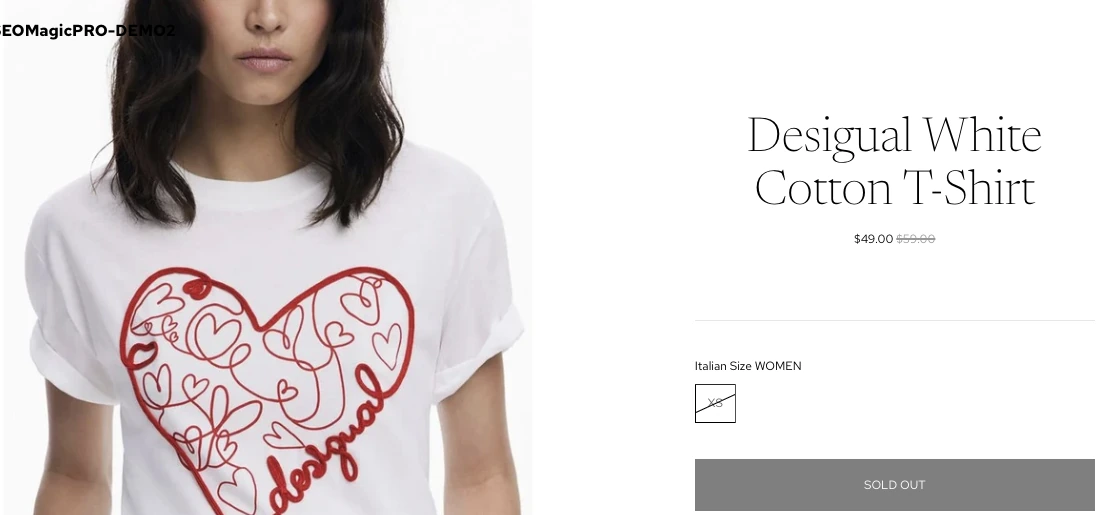
In the Demo2 Atelier theme preview, the Desigual T-shirt shows XS crossed out and a Sold out button. If you expected XS to be purchasable, check that variant’s availability. Further down, the page shows the short supplier description and exposes numeric and dropshipping tags. Check which details your own theme and product template display, and whether each helps the shopper.
6. Decide what to fix first
Start with problems that block an intended purchase or mislead shoppers, such as a launch product missing from the Online Store or a variant showing the wrong photo. Then look for repeated gaps, such as missing product types or alt text. If you find a pattern, expand the review to the affected group. Test one representative change and check the result before editing a batch.
| Product or collection | Issue | Proposed fix | How to verify |
|---|---|---|---|
| Desigual White Cotton T-Shirt | Draft and Online Store absent from Publishing | If ready to launch, set it to Active and make it available on Online Store | Find it in the intended collection on the storefront |
| Calvin Klein Blue Cotton Men’s T-Shirt | Product type is blank | Use Tops if it matches your store’s convention | Check the saved type and any filter or rule that uses it |
| Designer T-Shirts collection image | Informative banner had no alt text | Describe the assortment shown | Reopen the image in Shopify and check the alt text on the rendered page |
When you finish, you should know which listings need an individual fix and which issues are worth checking across the rest of the collection. Keep the table so you can verify the changes on your next pass.